Step 3 — Review and Visualise Uploaded Data
After a successful upload, the selected anonymized DICOM series and matching anonymized clinical metadata are stored in the selected ZODIAC archive. Uploaded records appear in the Archive Items list and can be accessed by authorized users according to the platform permissions.
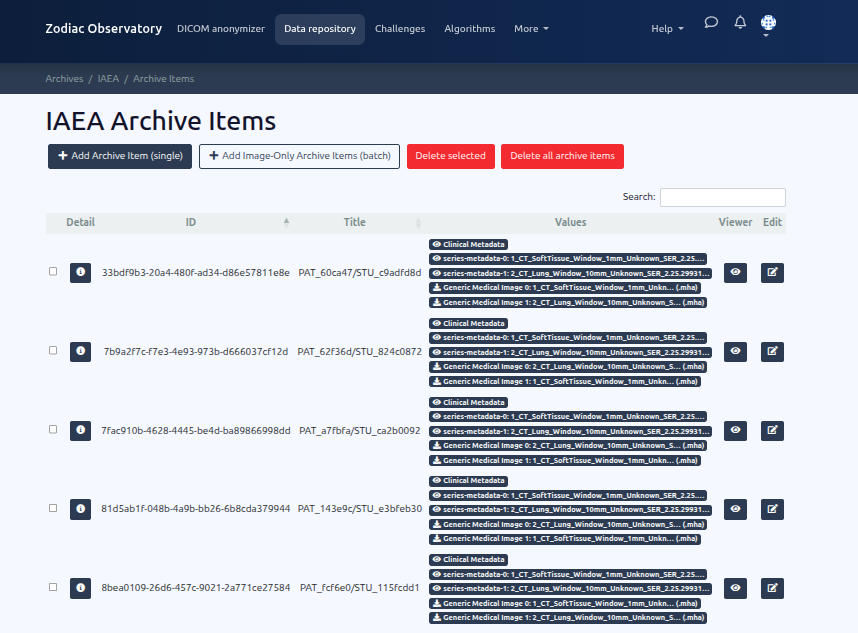
- Navigate to the selected archive and open the Archive Items list.
- Click the eye icon on an archive item to open the integrated CurateMe DICOM Viewer.
Inside the viewer, authorized users can:
- Browse uploaded anonymized series and individual slices
- Adjust window/level, zoom, and pan
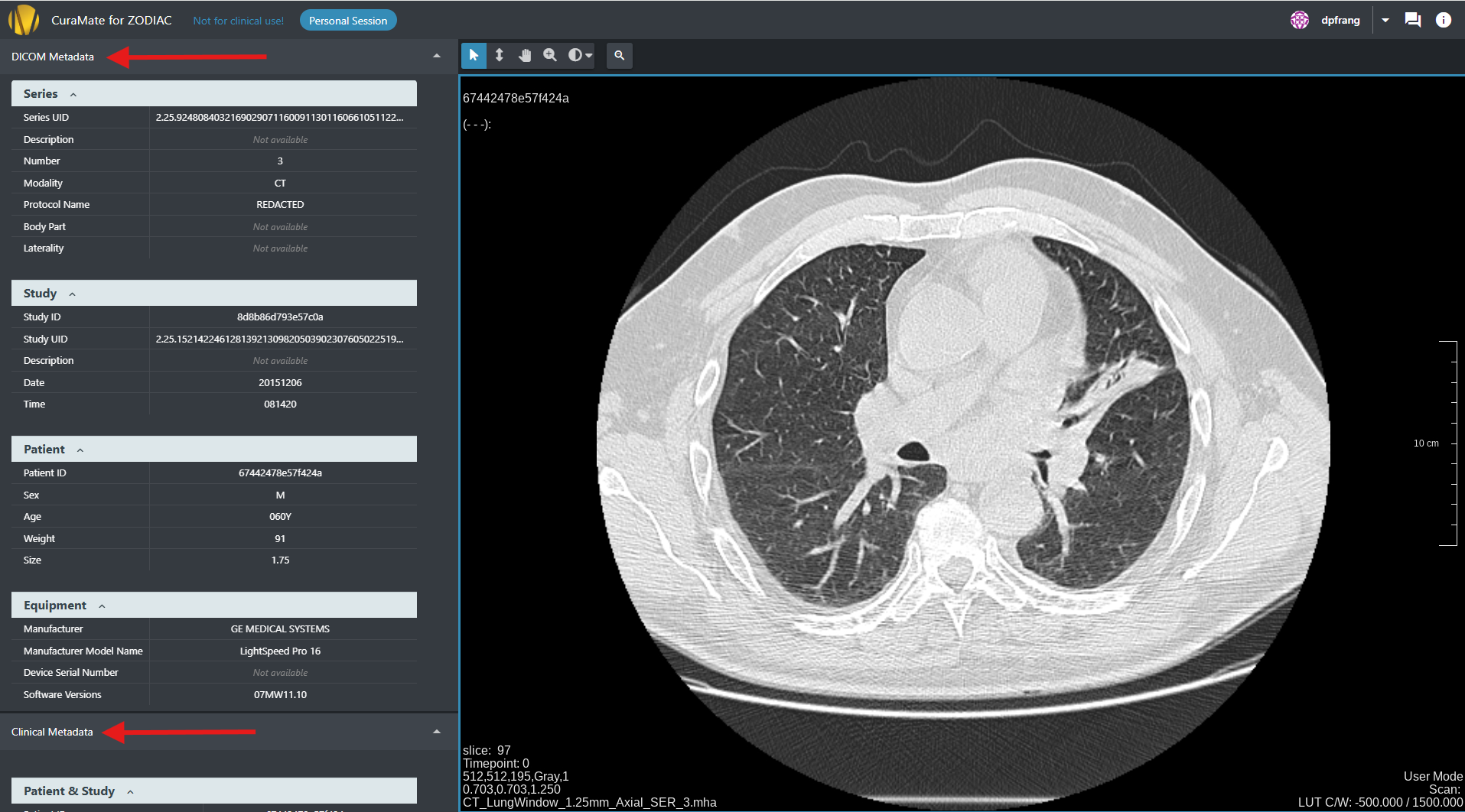
- Review anonymized DICOM header metadata for verification
- Access linked anonymized clinical metadata, if it was uploaded with the study
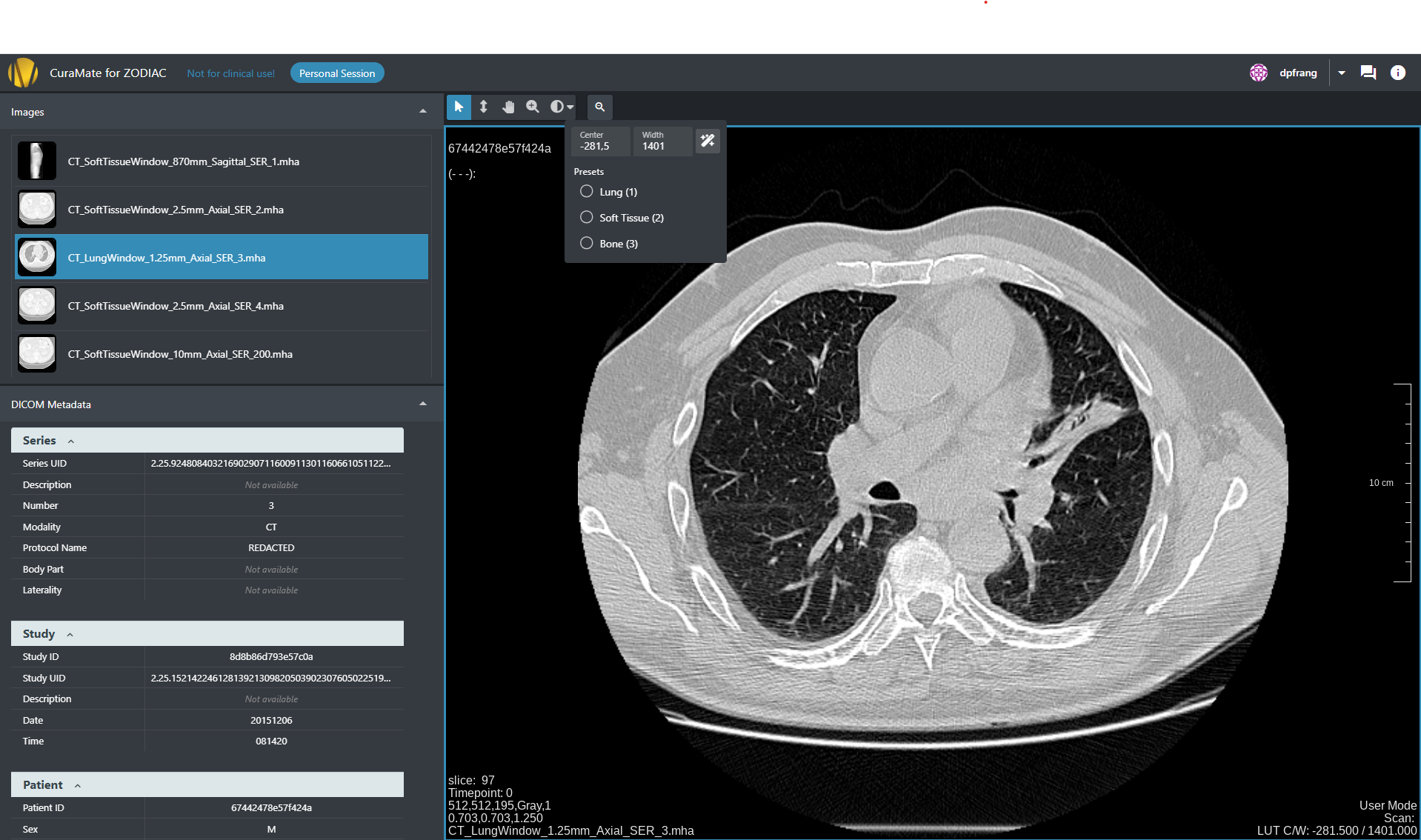
The viewer sidebar provides access to anonymized DICOM header metadata and linked clinical metadata for the selected image:
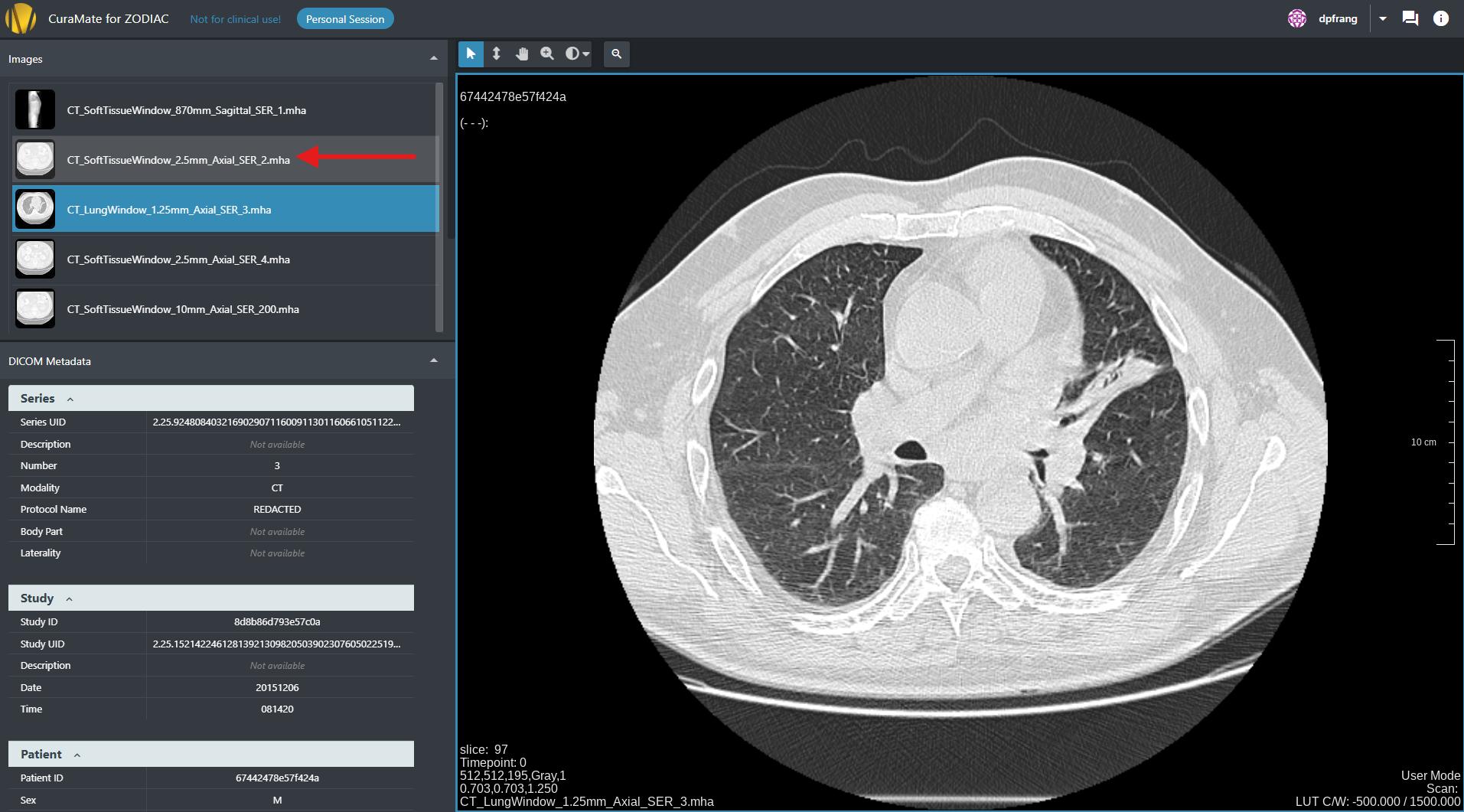
Use the Images side panel to navigate between series in a study. Click the corresponding row in the table to open a series:
If the image window is configured incorrectly, for example when the image appears too bright, open the Window/Level tool dropdown and click the wand icon to adjust it automatically:
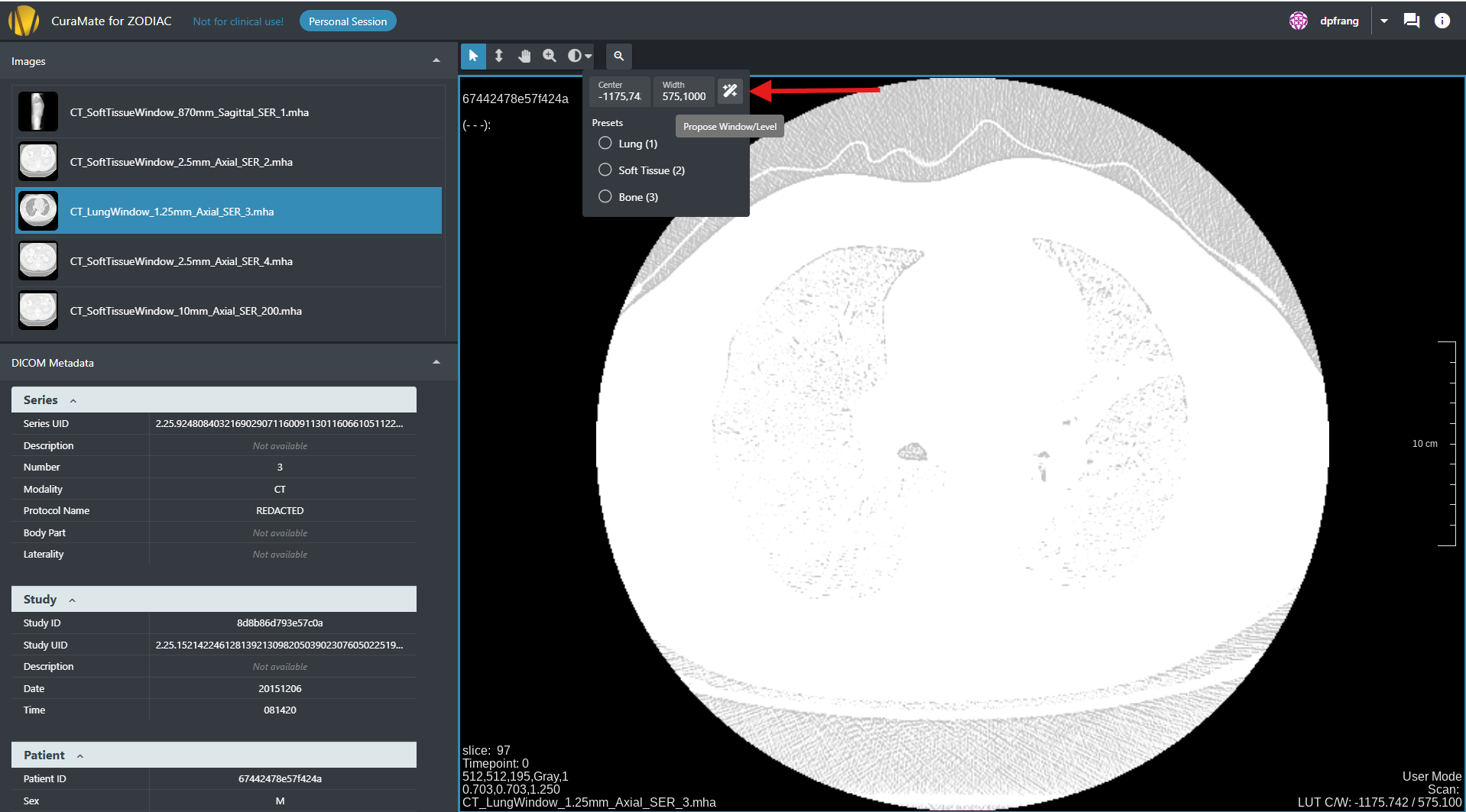
The automatic adjustment selects a suitable window center and width for the displayed image:
This integrated viewer allows participating institutes and authorized reviewers to verify uploaded data quality, completeness, and anonymization before further review, analysis, or AI-related processing.
Critical privacy guarantee: Original identifiable DICOM files, original clinical data, and local mapping files are not uploaded to the ZODIAC platform. All viewing and review on the platform is performed on anonymized data only.
The integrated viewer is intended for review, verification, and research workflows only. It is not intended for clinical diagnosis or treatment decisions.